
Apple AI:Everything You Need to Know – Features, Uses, and How to Get It
Apple has officially stepped into the world of artificial intelligence with the launch of Apple Intelligence, its own suite of AI tools built directly into its ecosystem. This is big news for iPhone, iPad, and Mac users who now have smart, private, and integrated AI assistance built into their devices.
In this article, we’ll explore what Apple AI is, how it works, how to use it, and where to get it.
What Is Apple AI?
Apple Intelligence – A Smart and Private AI Experience
Apple AI, officially called Apple Intelligence, is Apple’s version of artificial intelligence, introduced during WWDC 2025. Unlike other cloud-based AI models, Apple AI runs on-device, ensuring your data remains private and secure.
It’s designed to help users with:
- Writing and summarizing emails or notes
- Managing notifications
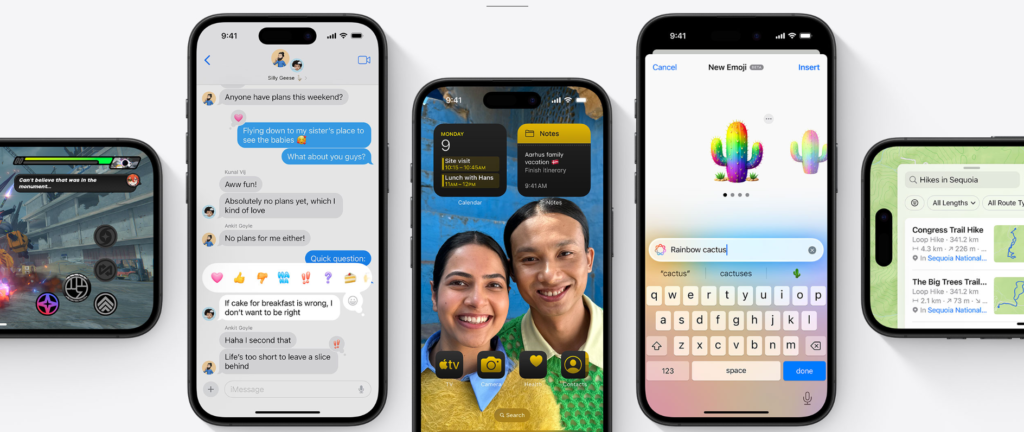
- Creating images or emojis
- Performing smart actions with Siri
- And much more…
Features of Apple AI
1. Writing Tools
Apple AI helps rewrite, summarize, or proofread text across apps like Mail, Notes, Safari, and Pages.
2. Smart Reply & Notification Summaries
It can provide quick replies and highlight important notifications automatically, reducing noise.
3. Image Generation
Using Image Playground, you can create AI-generated images in seconds, choosing from styles like animation, illustration, or sketch.
4. Siri Gets Smarter
With Apple Intelligence, Siri becomes deeply integrated, allowing you to ask context-aware questions like:
“When is Mom’s flight landing?”
“Show me the photos from last week’s trip.”
5. ChatGPT Integration
Apple also partnered with OpenAI to allow Siri to tap into ChatGPT for more complex tasks (only if you approve), without leaving your Apple environment.
How to Use Apple AI?
Step-by-Step Guide to Using Apple Intelligence
✅ Step 1: Make Sure You Have a Compatible Device
Apple Intelligence will be available only on:
- iPhone 15 Pro & iPhone 15 Pro Max
- iPad and Mac with M1 chip or later
✅ Step 2: Update to iOS 18 / iPadOS 18 / macOS Sequoia
You must install the latest OS version coming in Fall 2025 (Public Beta will be available from July 2025).
✅ Step 3: Enable Apple Intelligence Features
Once updated, go to:
- Settings > Apple Intelligence
- Turn on features like Writing Tools, Image Playground, and Siri AI Assistance.
✅ Step 4: Start Using Across Apps
You can use Apple AI in:
- Mail: Auto-draft emails
- Notes: Summarize or rewrite notes
- Photos: Clean up or find images with natural language
- Safari: Summarize web pages
Where to Download or Access Apple AI?
No Need to Download Separately – It’s Built-In
You don’t need to download Apple AI from the App Store. It comes built-in with your device’s operating system.
Just make sure you:
- Own a compatible device
- Update to the latest iOS, iPadOS, or macOS
Then, you’ll see Apple Intelligence features natively available in system apps.
Is Apple AI Free?
Yes, Apple Intelligence is free to use, and there’s no separate subscription required for basic features.
However, when using ChatGPT through Siri or Writing Tools, you’ll have the option to connect your own ChatGPT Plus account for advanced access — but it’s not necessary.
Final Thoughts
Apple’s entry into AI with Apple Intelligence is a bold and user-focused move. Unlike other tech companies, Apple prioritizes on-device processing and privacy, making it a unique AI offering.
With deep integration across the Apple ecosystem, Apple AI isn’t just an assistant — it’s a powerful companion that enhances your daily digital life.
🔔 Stay Tuned:
The full rollout is expected in September 2025 with iOS 18, but the public beta starts in July 2025. So if you’re excited to try it early, make sure to enroll your device in Apple’s Beta Software Program.
Tags: Apple AI, Apple Intelligence, iOS 18, Siri AI, ChatGPT Apple, How to use Apple AI, AI on iPhone
Would you like this article in a downloadable format (like Word or PDF)?